 A Video.js 10 skin by Abhi Tundel
Scrub by what you see.
A seek bar gives you a number. Frame Strip gives you the film. Hover the bar and a strip of real frames opens above it, coloured and numbered by chapter, so you land on the shot you wanted and not the second you guessed.
Try it: hover the bar · press Tab · open Accessibility Try it: tap the bar · open Settings · choose Accessibility
01 · The film, as a strip
Eight chapters. One strip.
This is what the skin shows you when you hover the bar: real frames from Sweater Whether, each one in its chapter's colour.
-
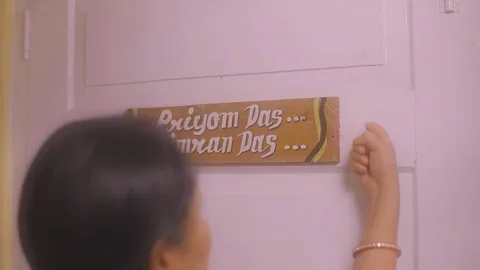 Chapter 1 · The Door
-
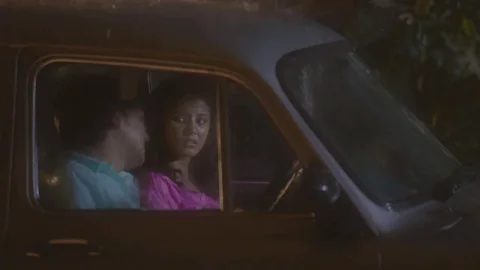 Chapter 2 · The Ride
-
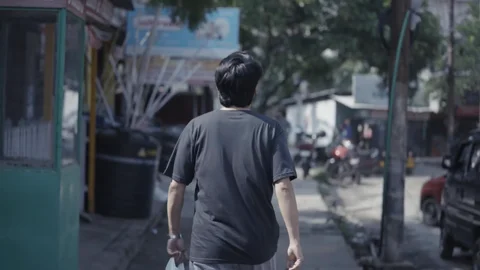 Chapter 3 · The Street
-
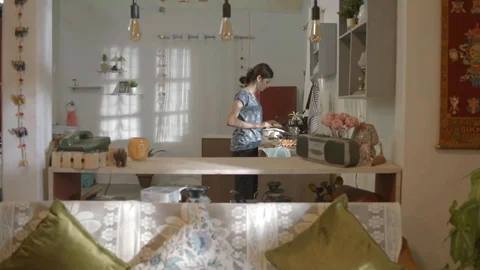 Chapter 4 · The Kitchen
-
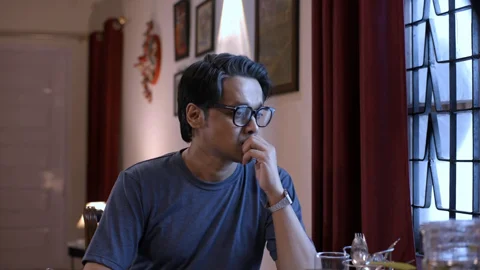
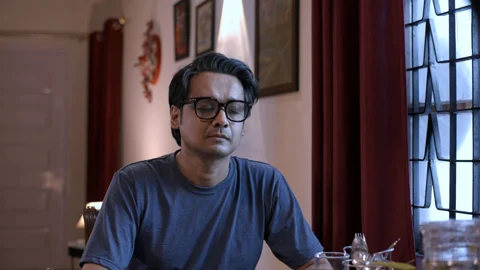 Chapter 5 · Lost in Thought
-
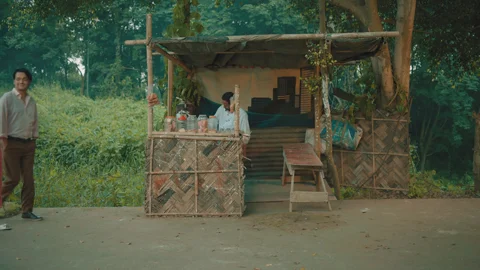
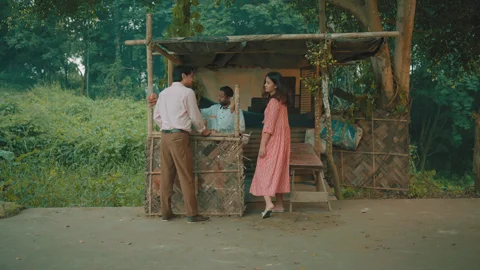
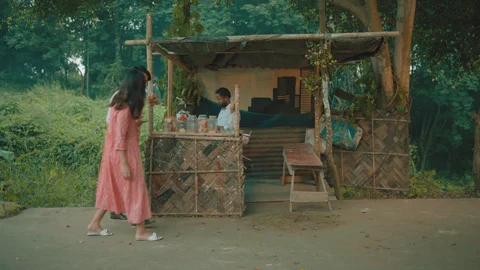 Chapter 6 · The Tea Stall
-
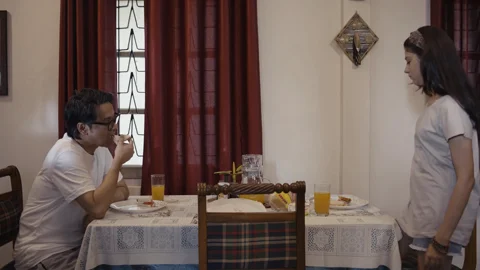 Chapter 7 · The Table
-
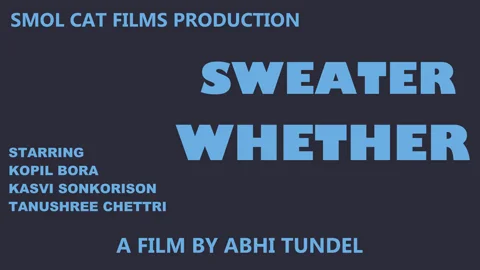 Chapter 8 · Coming Soon
02 · The idea
Why it exists.
I'm never looking for 0:26. I'm looking for a moment I can picture.
I'm a filmmaker. When a film is finished I still have to watch it in its final version, again and again: to check a cut, to find one shot, to show someone one moment. In editing software that is easy, because the timeline shows you the picture and you scrub by what you see.
But editing software is heavy. It needs a powerful computer, a licence and the project files. Everywhere else, on a phone, on a client's laptop, in a browser tab, the player gives you a bar and a number, and you guess. There was no player that works on every device and still lets you watch the way an editor does.
Frame Strip is that player. It is a Video.js skin built on the oldest tool in film: the filmstrip. Frames in a row, sprocket holes along the edge, and a colour for every chapter that runs through the seek bar, the strip, the panels and this page. Nothing to install.
-
Editing software
Shows you the frames. Heavy, licensed, and stuck on one computer.
-
A normal web player
Works everywhere. Gives you a bar and a number, so you guess.
-
Frame Strip
Shows you the frames, and works on every device with nothing to install.
03 · How it works
Three things to try.
-
01
See
Hover or focus the seek bar and it opens into a strip of real frames, coloured by chapter, with a larger preview above it.
Frame StripLive scrub preview0:16 · Chapter 4 · The Kitchen3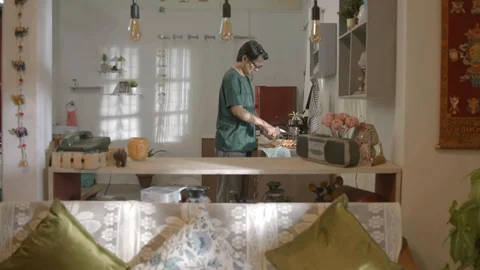 44
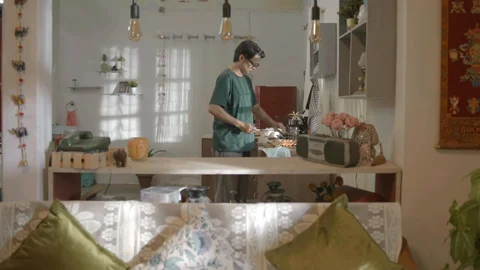 45
Hover the barReal frames open above it -
02
Browse
Frames opens every frame at once, grouped by chapter. Pick one and the film jumps there.
Frame StripFrame browserChapter 4 · The Kitchen0:130:160:21Chapter 5 · Lost in Thought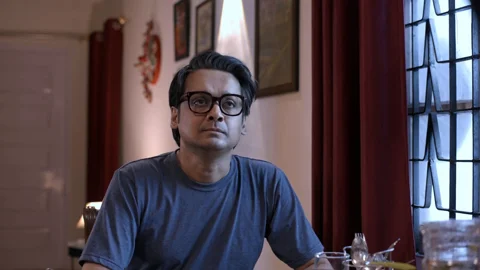 0:260:28
 0:31Chapter 6 · The Tea Stall
 0:340:36
 0:40
Frames, grouped by chapterPick one and the film jumps there -
03
Adjust
Accessibility changes how the player looks and moves: four presets, then ten options you can mix. Your choices stay on your device.
Frame StripAccessibility presetsLow vision4Colour-blind4Light-sensitiveEasier to pressFour presetsThen ten options you can mix
04 · Design decisions
Four decisions.
-
01
The picture is the control
Hover, focus or touch the bar and the frames open. Click or drag across them to jump. Every frame says its time and its chapter.
Frame Strip0:16 / Chapter 40:16 · Chapter 4 · The Kitchen4Previous4You are here4NextEvery frame says its timeand its chapter -
02
Colour has a job, and never works alone
Chapters are coloured, and also numbered and spaced apart. One option adds patterns for colour-blind viewers.
Frame StripPattern + colourColour only
Numbers and patterns
12345678Colour is never the only cue -
03
Accessibility is where it started
An Accessibility panel offers four presets and ten options you can mix. The player follows your device's reduced-motion, contrast and transparency settings, and what you choose stays on your device.
Frame StripLow vision / onStandard
Bold outlines, bigger controls
High contrastBold outlines44 px targetsEasier to see, easier to press -
04
It should work on any video
A video with no chapters gets equal parts. A video with no captions gets a greyed-out button, not a missing one.
Frame StripAny videoNo chapters? Equal parts.
Part 123456No captions? A greyed-out button.
Add captions file…Nothing is missingEverything is in its place
05 · Access
Made for everyone.
Accessibility is where this skin gets its ideas. It is the starting point, not an extra.
- Every control works by keyboard. Tab to move, the arrow keys to scrub, Escape to close a panel.
- Focus is always visible. A clear ring on every control.
- Targets of at least 44 px. Bigger controls are one tap away in Accessibility.
- Colour is never the only cue. Chapters are numbered, spaced apart, and patterned in the colour-blind option.
- Four presets. Low vision, Colour-blind, Light-sensitive and Easier to press.
- It listens to your device. Reduced motion, reduced transparency, more contrast and forced colours are followed.
- Captions when there are captions. The button is always in place, and greyed out when a video has none.
- Private. What you pick is saved on this device and goes nowhere.
444The colour filters are approximations. They are not a medical correction.
06 · Built to the brief
Checked against the brief.
The challenge asks for a skin that works, has the essential controls, is responsive, works with a keyboard and stays usable for everyone. Here is how this one answers each point.
-
Works
Plays video from Mux with Video.js 10. The three clips on this page are live.
-
Essential controls
Play and pause, a seek bar, time, volume and mute, and fullscreen are always in place.
-
Responsive
Controls stay visible and usable from a desktop player down to a phone-sized one. On a narrow player the strip gives way to a single preview.
-
Keyboard
Tab reaches every control, the arrow keys scrub, and Escape closes menus and panels.
-
Readable over any video
Controls sit on a dark, blurred panel, so icons and text stay legible over bright and dark footage.
-
Easy to tap
Controls are built to at least 44 px, and Accessibility has a Bigger controls option.
-
Visible focus
A clear focus ring on every control. Bold outlines makes it stronger.
-
Calm on request
Motion calms down when your device asks for reduced motion, and Calm motion in Accessibility does the same on demand.